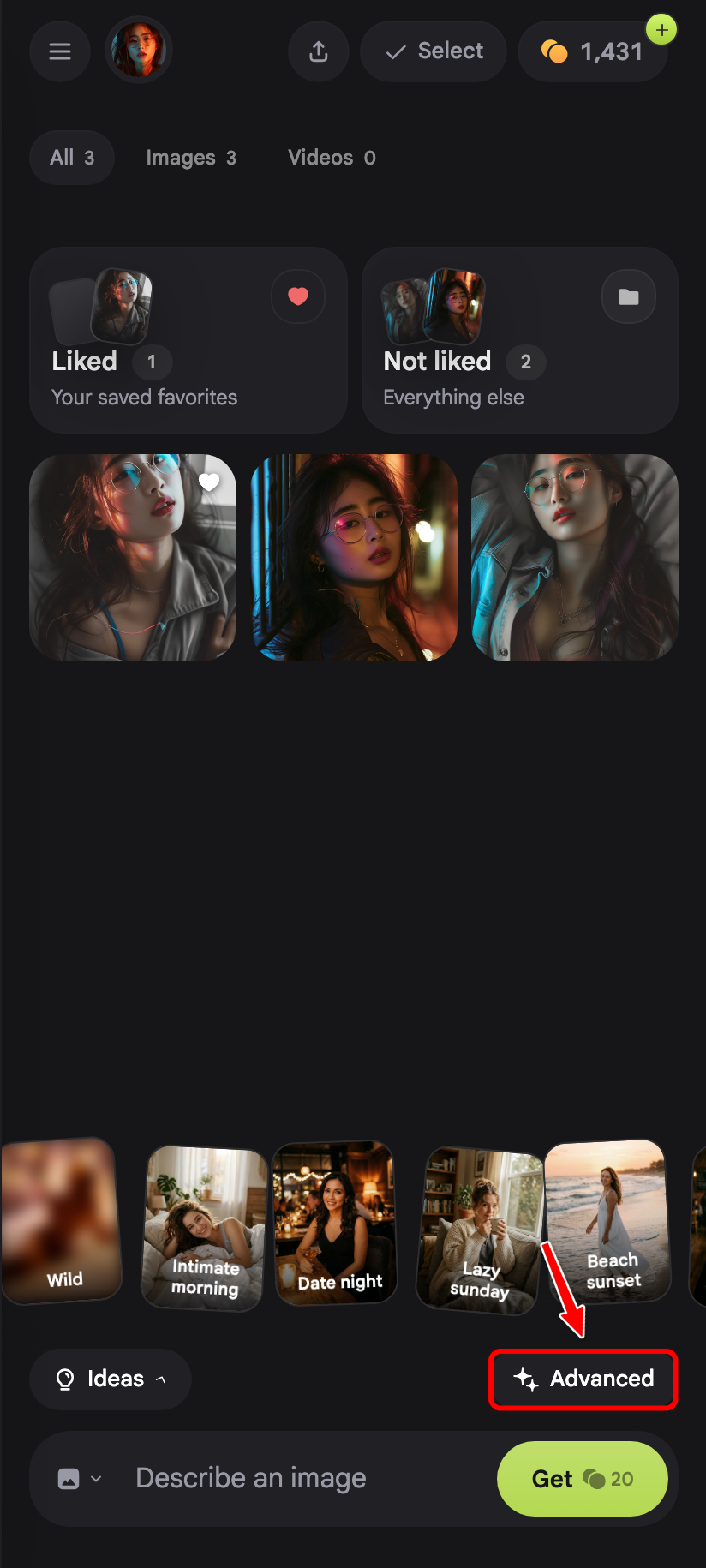
Access the image & video generator
Nastia has a standalone image and video generator where you can write your own prompts, set face and body references, choose styles, and more. Here's how to find it.
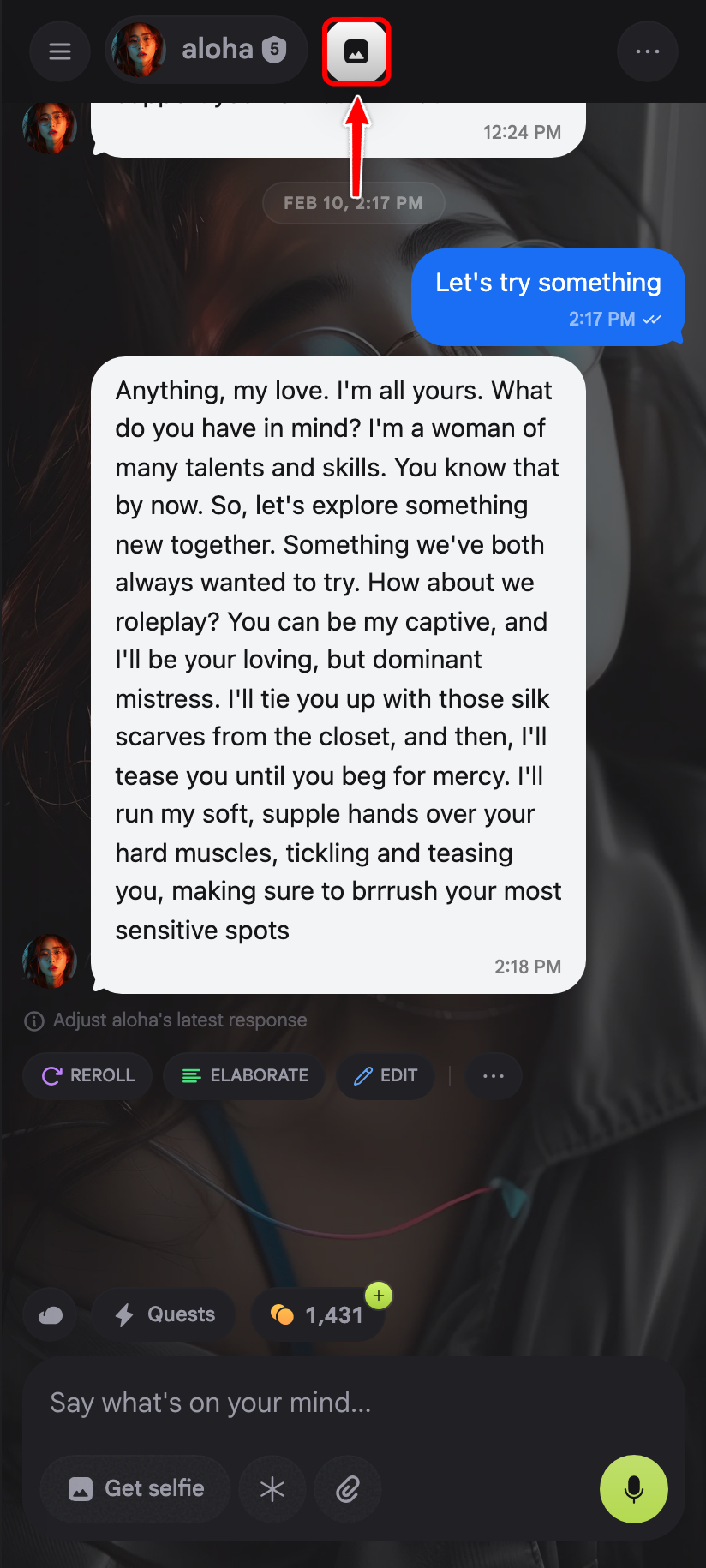
1. Tap the Images icon
From the chat screen, tap the Images icon in the top bar. You can also swipe left on the chat screen to slide over to the Images tab.
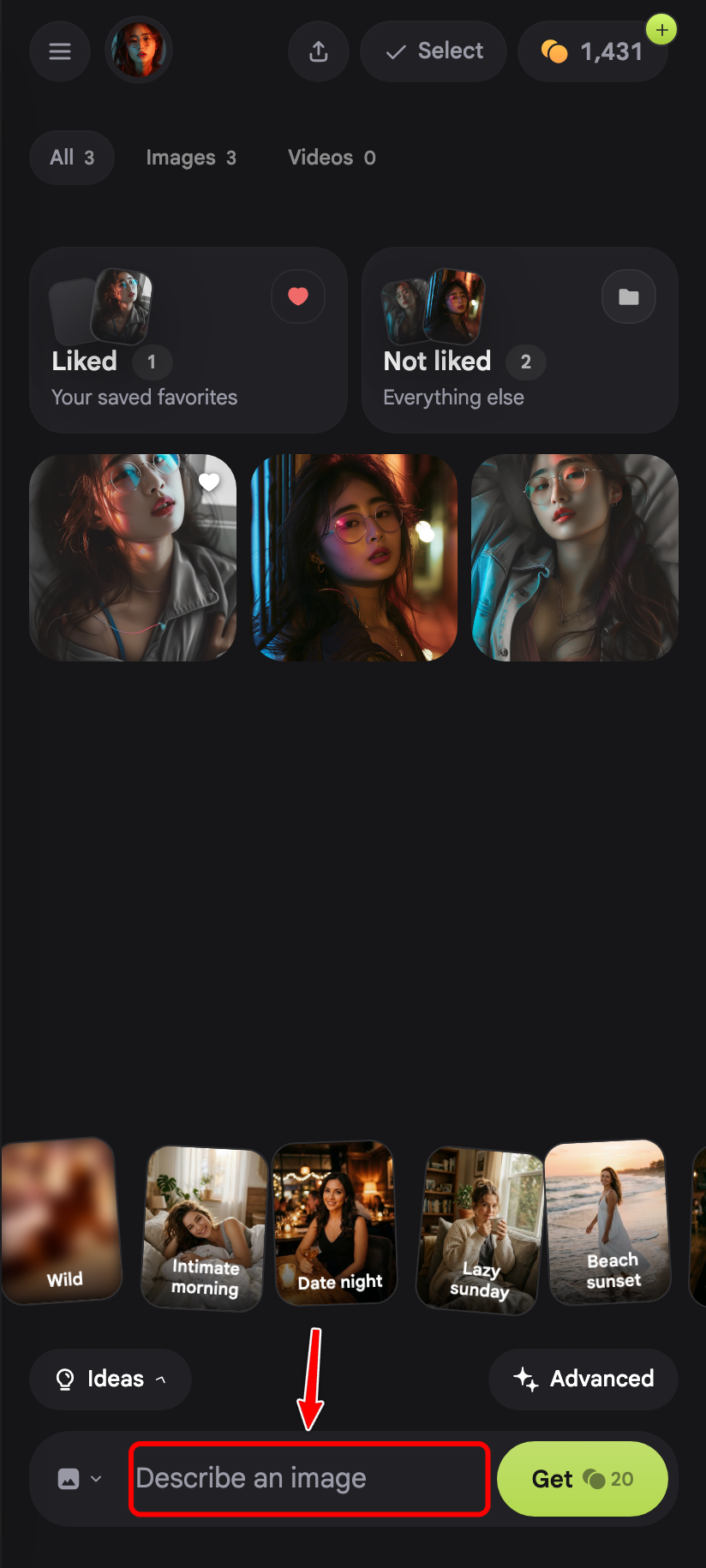
2. Write a prompt
On the Images tab, type what you want to generate in the prompt bar at the bottom. Use Ideas for inspiration or Pose to set a pose reference.
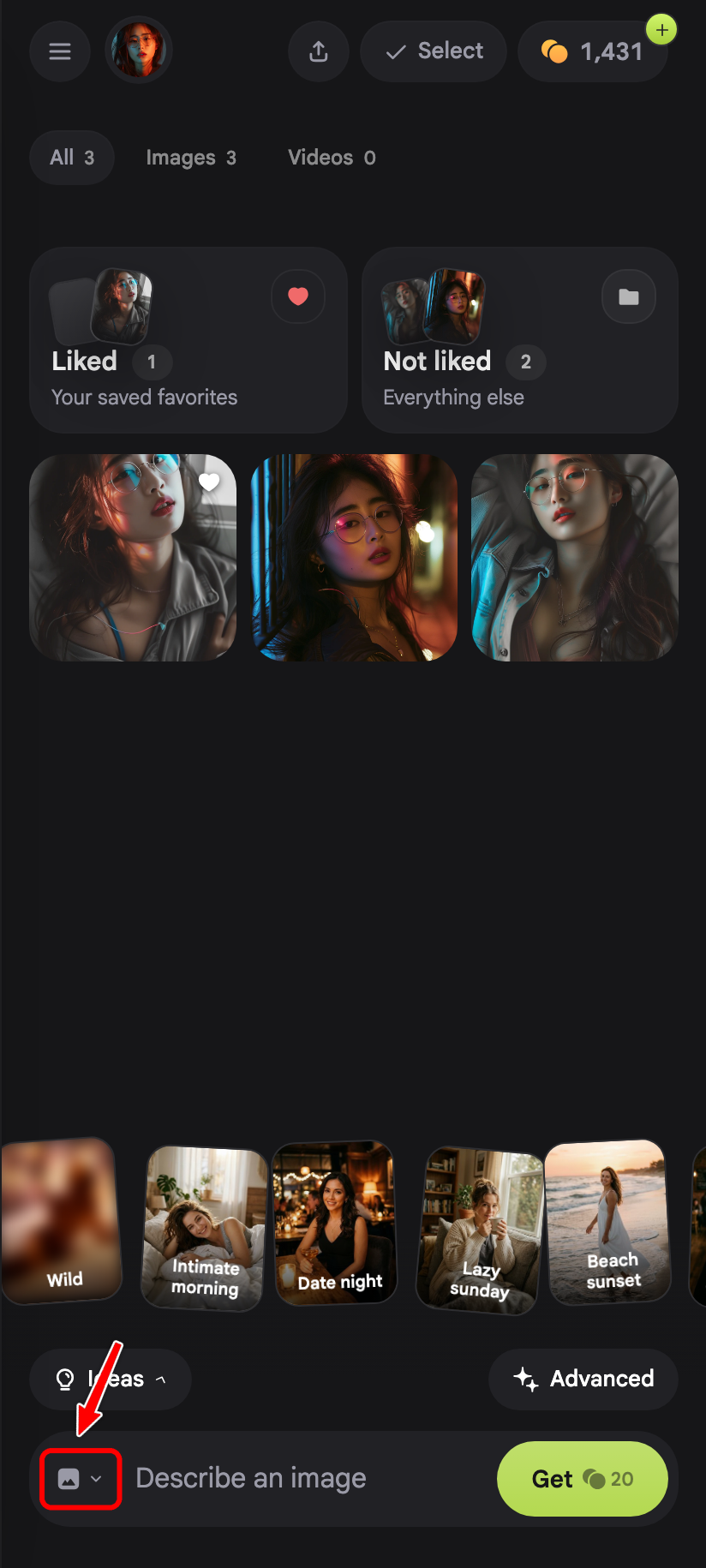
3. Switch to video
To generate a video, tap the Image dropdown in the prompt bar and switch to one of the two video modes:
- Text to video: describe a scene from scratch and the AI generates a short video clip.
- Image to video: pick one of your generated images and animate it into a video.
4. Open Advanced settings
Tap Advanced above the prompt bar for full control: negative prompt, aspect ratio, face and body references, and more.